All tutorialsCampaign Creator Tutorial

How to create AI fashion campaign images in under 2 minutes

Use Milano AI to turn one product photo into a campaign-ready fashion image for ads, storefronts, launches, and social content.

Create AI Fashion Campaign Images in Under 2 Minutes
Play
YouTube upload pending

Video placeholder

Use this finished video when the YouTube upload is ready. Keep the filename visible here so we can reference the exact asset later.

remotion/output/campaign-1min-kore.mp4

What you will learn in this tutorial

The Campaign Creator is built for fashion brands that need polished marketing visuals without starting from a blank canvas. You begin with a real product photo, then guide Milano AI with format, model, scene, lighting, and export choices.

The strongest results usually come from treating the workflow like a creative brief. The product image gives the platform visual truth; the prompt gives it direction; the model and format choices make the final image useful for the channel where you plan to publish it.

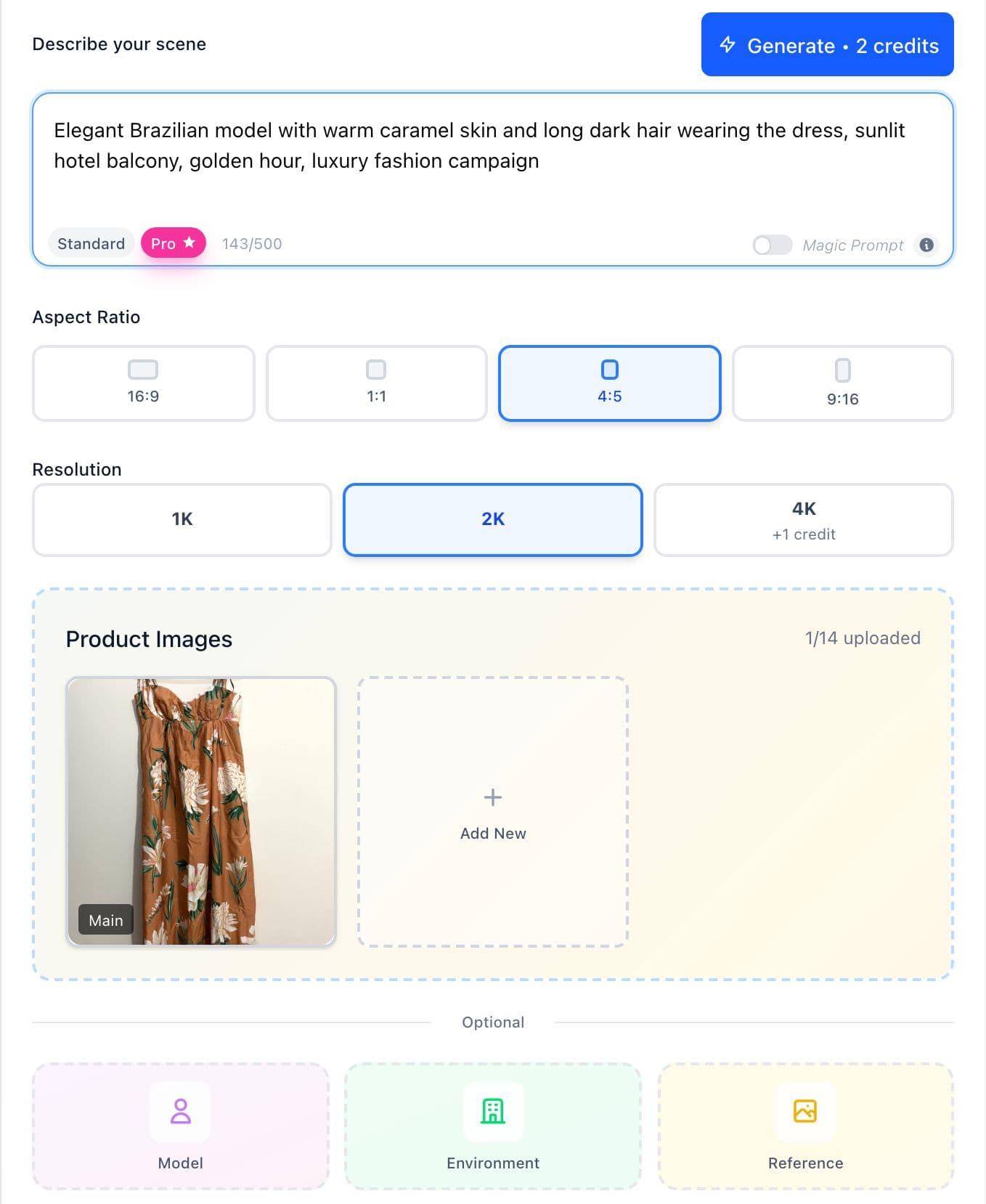
Upload product photos and references

Your upload is the anchor for the generation. It can be a product photo, a garment worn by someone, a mannequin shot, a hanger shot, or a mix of reference images that explain the item from different angles.

  • Best case: the garment is worn by a person or shown on a mannequin, because fit, drape, and proportions are easier to understand.
  • Still useful: hanger shots, flat lays, close-ups, side views, back views, shoes, earrings, bracelets, bags, and detail references.
  • Avoid blurry images, harsh shadows, heavy filters, or photos where the product color is hard to read.
  • If the item has important details like buttons, embroidery, logo placement, straps, texture, or accessories, add a reference image that clearly shows them.
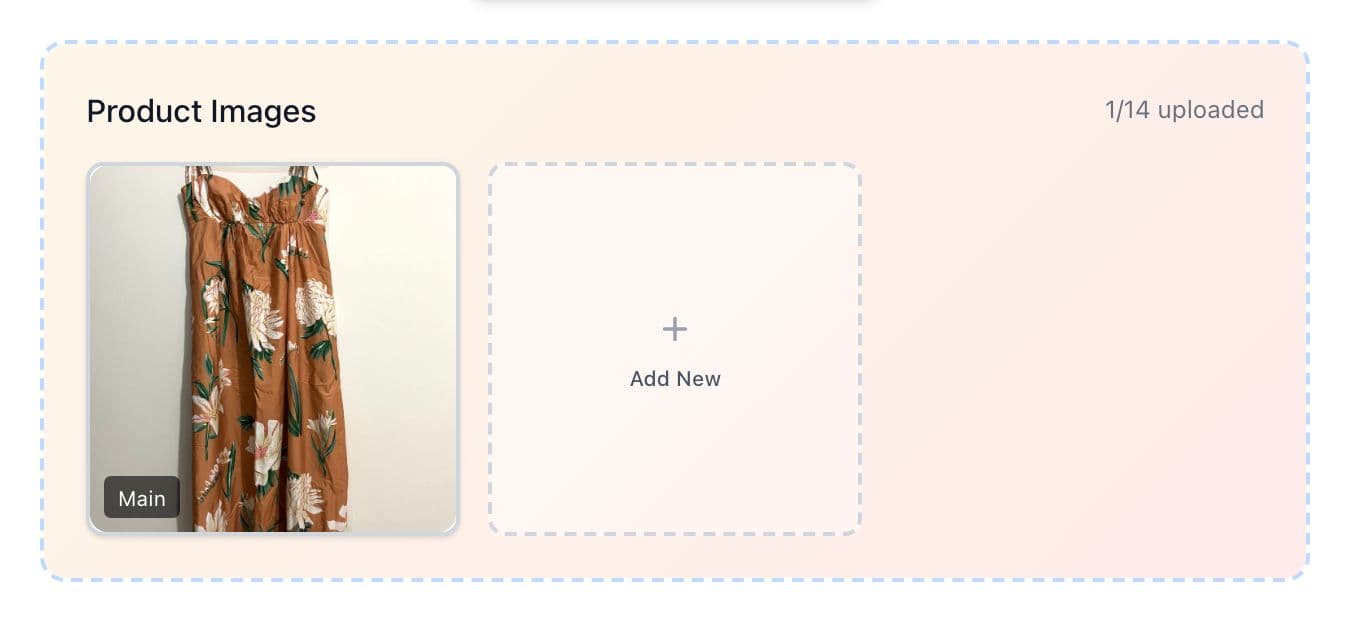
Close-up of the Campaign Creator product image upload area
Close-up: the product image area can hold the main product plus extra references.

Choose a model or describe one in the prompt

You can pick a model from the Milano AI library for speed, or describe the model directly in the prompt for more control. For fashion campaigns, model direction matters because the model influences fit, styling, mood, and the final brand feel.

  • Use the model picker when you want a fast, consistent model choice.
  • Use the prompt when you need a specific look, skin tone, hair, age range, pose, setting, or styling direction.
  • For campaign visuals, include scene and mood: hotel balcony, city street, studio editorial, golden hour, resort, minimalist luxury, or whatever matches the brand.
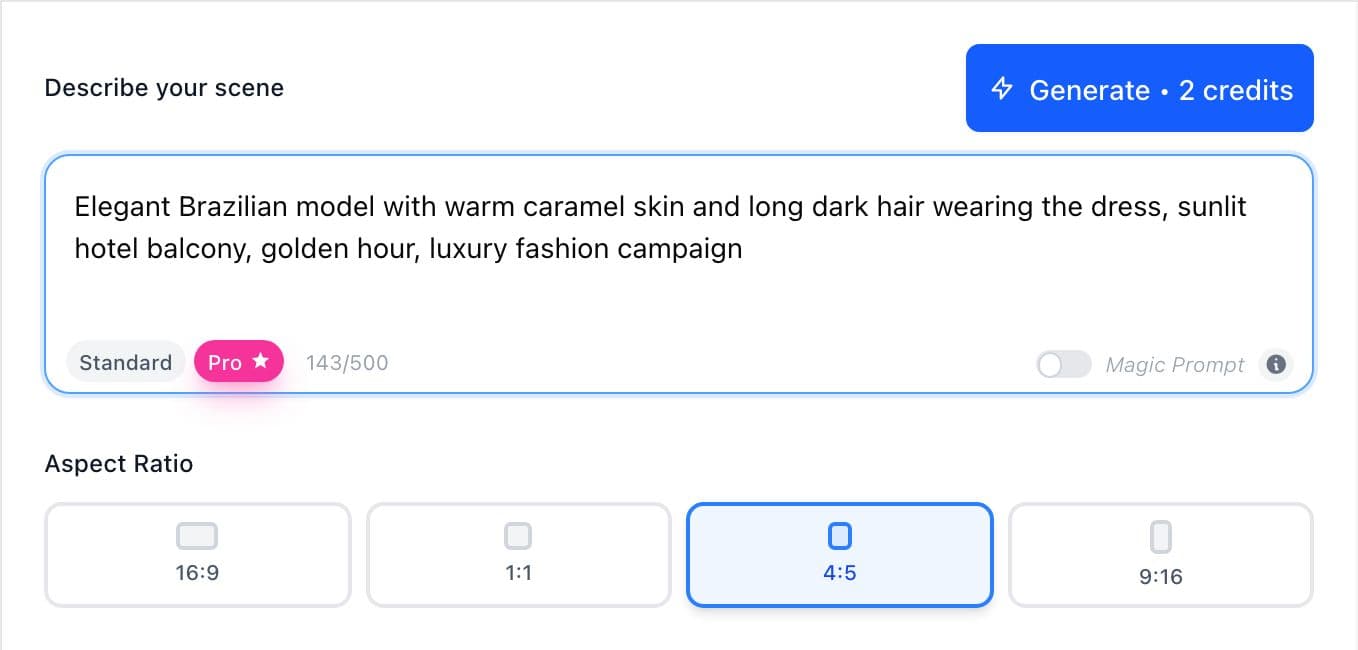
Close-up of the Campaign Creator prompt, model, and product reference controls
Close-up: choose a model, add references, and describe the campaign direction in the prompt.

Choose your image format and generate

Choose the image format based on the channel, then generate and review the final image. The format controls how the campaign creative feels before you even write a stronger prompt.

  • 16:9 is landscape. Use it for YouTube-style visuals, cinematic banners, website hero images, and wide campaign assets.
  • 1:1 is square. Use it for product grids, feed posts, thumbnails, and flexible creative testing.
  • 4:5 is portrait. Use it for Instagram image posts and carousels, where taller images take more screen space without becoming a video format.
  • 9:16 is vertical. Use it when you want the creative direction to feel native to Reels, TikToks, Shorts, and full-screen mobile placements.
Close-up of the Campaign Creator image format controls and Generate button
Close-up: pick the image format, then generate the campaign image.

Best practices before you generate

Make the product easy to understand

Use clear product references with accurate color, visible fabric, and enough shape information. If possible, include a worn or mannequin image so the fit is easier to preserve.

Add detail references when they matter

If the product has important straps, logos, embroidery, buttons, sleeves, shoes, jewelry, or texture, upload extra references that show those details clearly.

Write like a creative director

Describe the model, product, location, lighting, camera feel, mood, and styling. Short prompts work, but campaign prompts get better when the direction is specific.

Review the product before the background

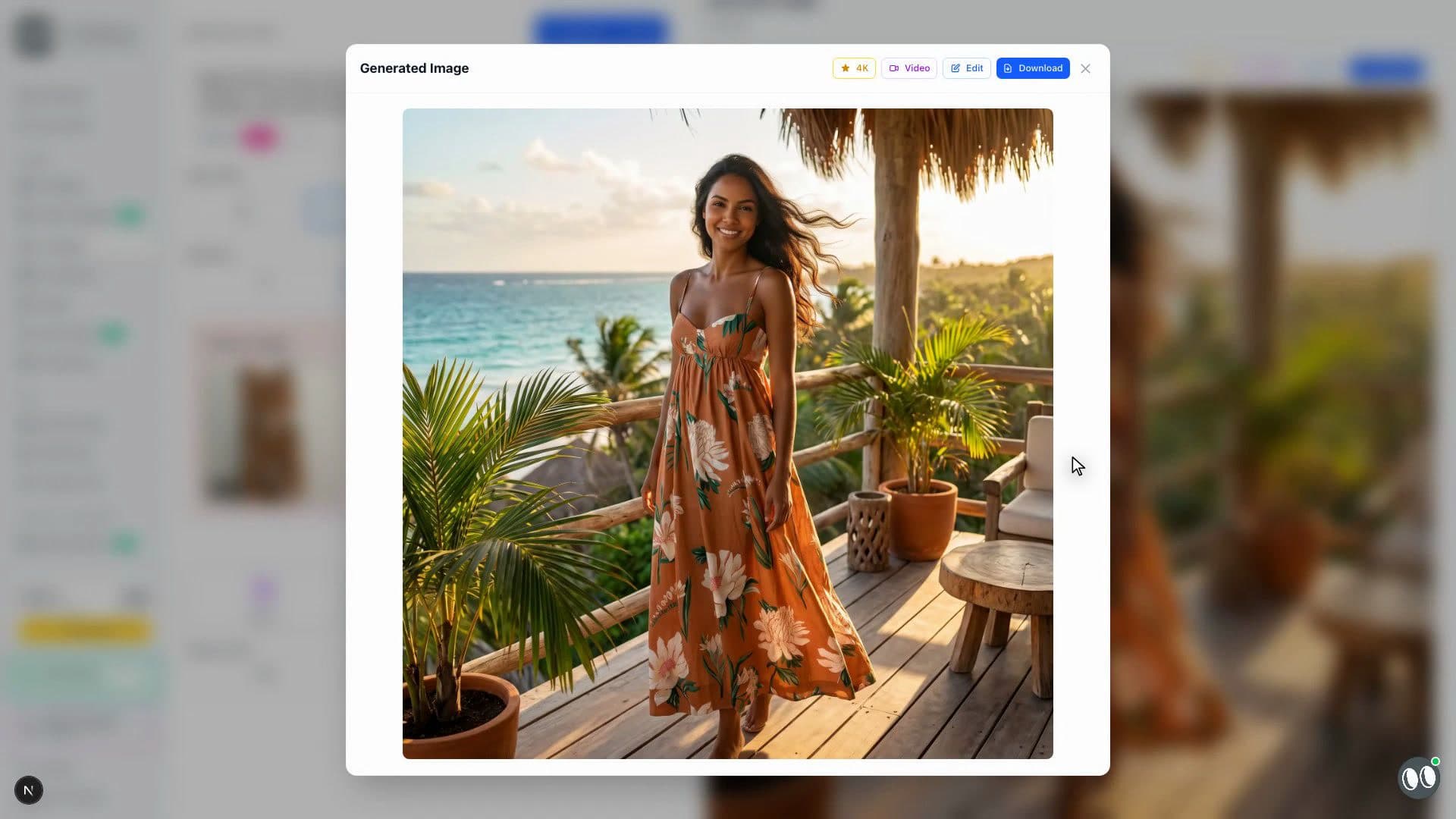
A beautiful image is not enough if the item is wrong. Check color, silhouette, fabric, accessories, hands, straps, and logo placement before using the result.

Starter prompts you can copy

Use these as starting points, then swap the product, model, scene, and brand mood to match your campaign.

Brazilian woman, resort campaign

Elegant Brazilian woman with warm caramel skin and long dark hair wearing the product, standing on a sunlit hotel balcony in Tulum, golden hour, ocean breeze, luxury resort campaign, editorial fashion photography, natural confident pose

Italian man, city campaign

Stylish Italian man with olive skin and dark hair wearing the product, walking through a clean Milan street at golden hour, modern luxury styling, soft shadows, premium fashion campaign, editorial full-body photography

American model, studio campaign

Confident American model wearing the product in a minimal studio with warm neutral backdrop, soft commercial lighting, subtle shadow, clean styling, premium fashion campaign image, sharp product details

Why this matters for fashion brands

Fashion brands need campaign images for paid ads, product launches, email campaigns, lookbooks, social media, and storefront banners. Milano AI helps teams create campaign-ready visuals from existing product photos, making it easier to test creative directions before investing in a full production day.

Campaign Creator FAQ

What is an AI fashion campaign image?

It is a campaign-style fashion visual generated from a product photo, prompt, model direction, and scene description.

Can I choose the model?

Yes. You can choose a model from the Milano AI library or describe the model you want in the prompt.

What kind of product photo should I upload?

Use a clear product image where the item, color, fabric, and shape are easy to see.

Can I use the final image for ads or my storefront?

Yes. The workflow is designed for campaign visuals, ads, storefront content, launches, and social media creative.

Campaign Creator Tutorial

Create your next campaign image with Milano AI

Open the Campaign Creator, upload your product references, choose a model or describe one, and generate a campaign-ready image for your next launch.

Create AI Fashion Campaign Images in Under 2 Minutes
2 min

Related tutorials